Technology development

Tech Tools

Tools, technical articles, reference guides and quick-reference support for technical decisions across shooting, lab and post-production.

Tools by Alfonsín Digital Lab

R&D adapted to the reality of productions.

Technology in our sector is constantly evolving, so we maintain an active ideas lab where we develop tools for internal and public use, offering effective applications for daily work: fast, precise and designed from real shooting, lab and post-production practice.

FramingCalc

Calculates framing, resolution, active areas, editing formats and frameleader. Processes ASC FDL files.

TransferCalc

Estimates transfer times according to size, source bandwidth, connection type and destination.

StorageDataCalc

Storage calculation based on video format, audio, duration and shooting plan.

BitrateCalc

Calculates the required bitrate from final file size and duration.

Tools by Alfonsín Digital Lab

FinisGrade®

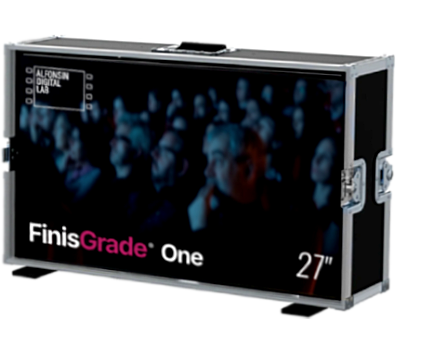
Bring the color grading room wherever you need it with FinisGrade One.

  • Real-time remote connection with our DaVinci Resolve color room.
  • Exclusive flightcase system with a 27" OLED reference monitor.
  • Display calibrated with spectrophotometer and matched to our color room.
  • Low-latency encrypted HD1080 4:4:4 10-bit streaming reception.
  • Remote work from any location with a stable fiber or 5G internet connection.
  • Available exclusively for clients who hire our color services.
FinisGrade One

Tools by Alfonsín Digital Lab

AnyWere Viewing Rooms

There are no longer limits of time or distance. We have developed viewing rooms for real-time reviews directly from the Avid timeline, with low latency and no third-party software.

Tools by Alfonsín Digital Lab

DolbyVision MetaCheck

The official Dolby Vision metadata validation tools are designed for command-line use (CLI) and do not graphically display HDR parameters.
To make this easier, we created a tool for Dolby metadata XML files, with inspection and graphical representation under their specifications.

  • Checks that dynamic metadata (L1 to L9 levels) complies with Dolby specifications, detecting anomalies such as unanalyzed frames or duplicated shots.
  • Detects discrepancies between the exact video duration and metadata synchronization, avoiding flicker or display issues for the viewer.
  • Analyzes luminance information to automatically calculate global static MaxCLL and MaxFALL values for HDR10.

DolbyVision MetaCheck

Load and inspect Dolby Vision metadata XML.

Tools by Alfonsín Digital Lab

ADL-QRtrack copy tracking system ©

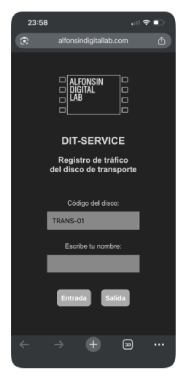
At Alfonsín Digital Lab we have implemented an online tool to track transport drives, designed for very simple use by scanning a QR code with a phone.

  • When scanning the QR code on the hard drive case, a mobile browser window opens with the drive name automatically filled in, followed by a name field and two buttons: check-in and check-out. GPS location is also registered.
  • The tracking log can be followed on a website assigned to the project.
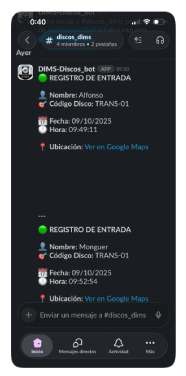
  • If a Slack workspace has been enabled to track transport drives, the system automatically notifies the group with all registered data.
ADL-QRtrack on mobile ADL-QRtrack Slack notifications

External tool links

CVP Lens Tool

Tool for checking lens coverage over sensors.

Cineflares

Tool to view and compare flares from different lenses.

editingtools.io

Online tools and plug-ins for post-production.

di|tools

EDL-based and inspection tools.

videotoolshed

Tools for metadata and TimeCode.

Tech Tips

Technical articles

ACES quick guides
ACES was developed by the Academy of Motion Picture Arts and Sciences and is one of the most robust ways to manage color in digital cinematography. It allows images from any digital camera or film scanner to be handled in a common space and processed for delivery to any existing standard in a simple and direct way.

The Academy has published a set of quick guides, available here for download.

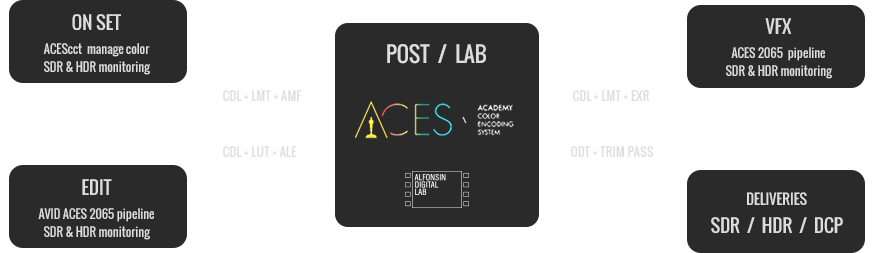
At Alfonsín Digital Lab, the technical foundation of our workflows is based on ACES, allowing us to manage the image with great precision from set to final delivery.

We have tested different digital cinema cameras, color spaces, gamma curves and codecs, analyzing how images behave as they move through different software tools. This has allowed us to build an integrated workflow where the image keeps the same color and contrast parameters at every stage, while adapting to the required viewing environment in both SDR and HDR.

Alfonsín Digital Lab ACES workflow
KODAK essential reference guide for filmmakers.
This book is a classic technical reference published by KODAK, with information about light meters, cameras, lighting, film stock selection, post-production and workflows in a format that is easy to read and apply.
Here is a download link for the Spanish version of this complete manual.

Data storage and RAID units.
To keep our data safe, it is useful to understand the storage media we use, how they work and which maintenance practices we should follow. When those drives are grouped in RAID systems, we also need to understand how the RAID works and how data is managed according to each configuration.
The main storage types are HDDs (mechanical drives), which contain spinning platters, and SSDs (solid-state drives), which use electronic chips for faster access and greater shock resistance.

HDD (Mechanical Hard Drive)
Traditional hard drives, usually 2.5" or 3.5". They offer a low cost per Terabyte and are ideal for large data volumes, but consume more power, are slower and are more vulnerable to damage from drops because they have moving parts.

SSD (Solid-State Drive)
These can be found with SATA connections in 2.5" format and with PCI-Express connections in M.2 format. They store data on electronic chips, making them much faster, shock-resistant, silent and power efficient, although generally more expensive per Gigabyte.


CARE:

  • Handle drives carefully and avoid moving them while they are running, especially mechanical drives.
  • Avoid high temperatures and keep drives well ventilated. Heat reduces performance and shortens lifespan.
  • Drives can be damaged by strong electromagnetic fields, so avoid placing speakers, magnets or electromagnetic sources nearby.
  • Use diagnostic tools to monitor status, temperature and defective sectors (SMART).
  • With HDDs, defragment the drive periodically to optimize performance and lifespan.
  • With SSDs, always leave free space available and avoid filling them to 100%. Disable PC hibernation, as it involves many write operations and may reduce lifespan.
  • Always use the safe eject option in your operating system before disconnecting an external drive to prevent data corruption.
  • To protect data properly, make regular backups to another storage unit or to the cloud.


  • RAID UNITS

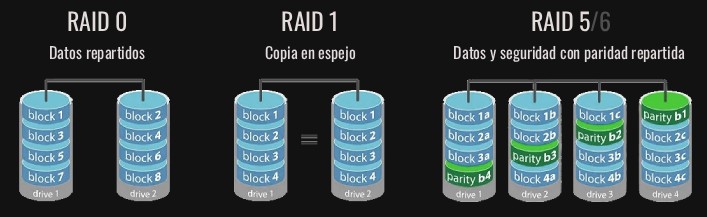
    RAID units (Redundant Array of Independent Disks) combine multiple hard drives to create a single storage volume, improving performance, capacity or fault tolerance. There are different configurations, called RAID levels (such as RAID 0, RAID 1 or RAID 5), each with its own advantages and disadvantages, distributing or replicating data across drives to achieve specific goals such as higher speed, redundancy or a combination of both.

    Striping:
    Data is divided into blocks and written across different drives sequentially and in parallel. This increases read and write speed because several drives can be accessed at the same time.

    Mirroring:
    Data is copied identically to more than one drive. If one drive fails, the system can keep working with the data stored on the other drive.

    Parity:
    Parity information (redundant data) is generated and distributed across the array. This information makes it possible to rebuild the data from a failed drive if it is lost.


    Comparison diagram of RAID configurations


    MOST COMMON RAID TYPES


    RAID 0
  • Feature: Striping or data fragmentation across drives. Minimum 2 drives.
  • Advantage: Improves read and write performance by distributing data across multiple drives, adding their speeds.
  • Disadvantage: No fault tolerance; the loss of a single drive makes all data unrecoverable.

  • RAID 1
  • Feature: Mirroring or data duplication, with an exact copy on another drive. Minimum 2 drives.
  • Advantage: Provides high data redundancy, since data exists on at least two drives. If one drive fails, the other remains available.
  • Disadvantage: Lower storage efficiency and write speed, because drive capacities are not added and writing must happen on all drives simultaneously.

  • RAID 5
  • Feature: Block-level striping with parity information distributed across all drives, tolerating the failure of one drive. Minimum 3 drives.
  • Advantage: Offers a good balance between performance and redundancy, adding speeds and allowing recovery if a single drive is lost.
  • Disadvantage: Write performance can be affected by parity calculation. If more than one drive fails, all data may be lost.

  • RAID 6
  • Feature: Similar to RAID 5, but with a second parity layer distributed across all drives. Minimum 4 drives.
  • Advantage: Provides greater redundancy than RAID 5, allowing two or more drives to fail simultaneously depending on the configuration.
  • Disadvantage: Higher overhead due to double parity calculation, which can affect performance compared with RAID 5.


  • 100% SECURITY

    To achieve the highest possible data security (although no absolute 100% guarantee exists), we should apply the 3-2-1 rule.
  • 3 copies of your data (the original plus 2 backups).
  • 2 different types of media (for example, a RAID copy plus an LTO tape copy).
  • 1 off-site copy, so all copies are not stored in the same place. It can be in another physical location or in the cloud.


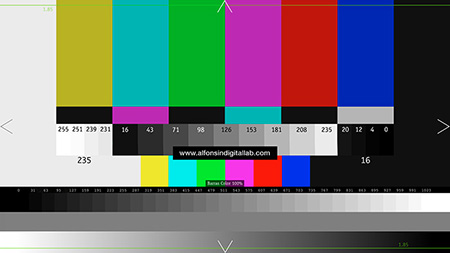
  • Test chart for monitor adjustment and image processing analysis.
    This test chart is very useful for properly adjusting monitors and avoiding surprises caused by incorrect viewing.
    It can also be used to run compression tests or different post-production paths through several software tools, checking how the chart changes so we can keep control of the process.
    Here are the instructions for correct calibration of a broadcast monitor (CCIR 601/709). Import the file as "Full Range"; if it is imported with video levels, the measurements will be incorrect.

    HD1080 test chart

    Edge crop

    The triangles on the edges show the limits of the full frame, making it possible to detect cropping in the monitor, image cropping in a downconversion or cropping during file conversion.
    The horizontal lines show crop for 1.85 film framing.

    Color bars

    The full-size color bars are 75%: white is 235, black is 16 and each color is 180. These bars include a lower strip for saturation adjustment using the monitor's "blue only" mode.
    100% color bars are provided in the lower-center area: white is 235, black is 16 and each color is 235. 100% color bars in PAL would exceed saturation limits.

    Super-white (8-bit units)

    The super-white regions show a super-white level (255).
    File conversion should preserve the super-white area, but some algorithms may remap from 16-235 to 0-255.
    A difference between 255 and 251 should be visible in the waveform. On a calibrated video monitor, a difference should be visible between 231 and 235, but regions above 235 may look uniform if clipping occurs.

    Super-black (8-bit units)

    The super-black regions show a super-black level (0).
    Black below 16 is not a usable area. Some conversions clip below 16, while others compress the signal while preserving some information.
    On a calibrated video monitor, there should be a visible difference between 16 and 20, but 16 should look the same as the numbers below it (4, 8, 12).

    Grayscale

    In the center area there is an 8-step grayscale, from 0% to 100%. Numeric values indicate RGB levels on an 8-bit scale.
    At the bottom of the chart there is a 32-step grayscale, from 0% to 100%. Numeric values indicate RGB levels on a 16-bit scale.
    The grayscale will reveal gamma corrections applied to the image.

    B/W ramps

    The black-and-white ramp located at the bottom of the image can reveal histogram defects (posterization) caused by color correction.
    This ramp only has 8-bit resolution.

    Monitor considerations

    Some aspects of the test chart can be detected by eye on both video monitors and calibrated computer monitors.
    However, keep in mind that the specifications of both monitor types vary in several ways:
  • The frame may appear cropped on video monitors because of overscan.
  • The image may appear interlaced (or segmented frame) on video monitors.
  • Black levels (setup), gain and gamma may be different.

  • Workflow with DSLR and AVCHD camera files.
    DSLR cameras such as the Canon 5D or Nikon D800, as well as AVCHD video cameras, are often used in low-budget productions because their cost-to-quality ratio is quite good. Their workflow is somewhat particular when we need to use the footage in processes that involve several tools.

    The first thing to consider is the file format and codec. They are usually H.264 files with interframe compression. For post-production, these files can cause many problems, so the first step is to convert them to an intraframe codec, which offers higher quality and supports more processes without degradation. The ideal codecs for this are Apple ProRes and Avid DNx.

    Another issue with these files is the absence of a TimeCode track and metadata assigning a "reel" value. In EDL conform processes between different post-production tools, reel information and timecodes are essential to avoid identification errors in the footage and to preserve edit accuracy.

    If you are going to work with these cameras and later finish your project in our studio, we recommend using software such as Shutter Encoder. This tool is free (donations are possible) and allows you to quickly and easily convert original camera files into post-production-friendly codecs, adding TC tracks, extra metadata and batch file renaming.
    Tips for properly recording an image with tracking points.
    When creating composites, if the camera or the object where new elements will be inserted is in motion, good tracking points are essential so that the final integration of all elements works properly.
    Here is a list of tips so those points are recorded in the best possible way and do not become a problem while failing to serve their purpose.

    Main characteristic of a tracking point.

    Example of tracking points over an image
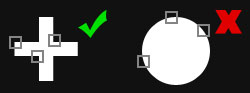
    A good tracking point has well-defined pixel detail, such as a corner, rather than the curve of a circle.


    Good tracking points.

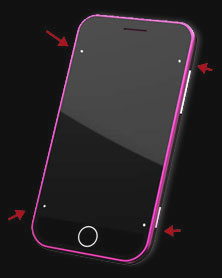
    Tracking pattern with reference marks

    Bad tracking points.

    Tracking example with marks distributed across the shot


    Tracking on screens.

    Placing tracking points on screens to insert images into them is very common in many productions, and it should be done so that the integration looks as realistic as possible.

    Tracking reference on a vertical surface
    It is important to preserve the screen reflection whenever possible so it can be applied later over the final composite. For that reason, the best approach is to place the smallest possible points, making them easier to remove later. If the tracking marks are large, we lose a wide area of the screen and will not be able to use it for the reflection layer.

    Tracking example with perspective marks
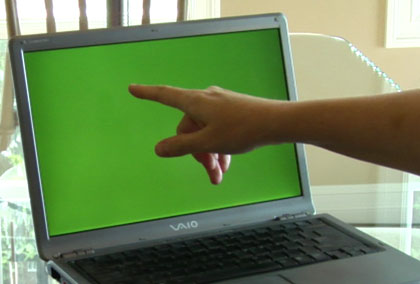
    If we use a chroma background and a hand passes in front of it, for example, we need to make sure the hand does not cover the points. If they are lost, perspective calculation can become problematic. Because there is good contrast between the corners and the black frame of the screen, in some cases it may be possible to perform a good tracking analysis without having to place points on the chroma.

    The ideal approach for compositing with tracking points is to use a 3D tracking tool such as Mocha, for example. It will perform a strong point analysis across all axes and preserve perspective, scale and position information.


    Tracking with perspective.

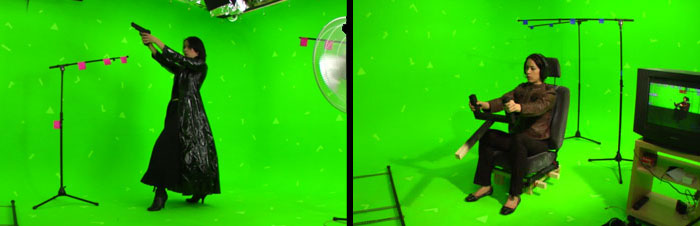
    When compositing with chroma backgrounds and depth information is needed to preserve perspective and scale, at least four points should be used and placed so they define the three-dimensional space. In this case, points made with a cross are the best option.

    Shot with tracking points prepared for compositing
    When there are handheld or Steadicam camera movements, microphone stands with labels can be very useful as tracking points. In this way we get points that define the three-dimensional space very well, and with the help of a 3D tracking tool we can extract the information needed to composite the image very effectively.

    MXF files.
    MXF (Material Exchange Format) is a file format intended for the exchange of audiovisual material with associated metadata between different applications. Its technical characteristics are defined in the SMPTE 377M standard, and it was developed by the Pro-MPEG Forum, the EBU organization and the AAF association, together with major companies and manufacturers from the broadcast industry. The final goal is an open file format that makes it easier to exchange video, audio, data and associated metadata within a file-based workflow.

    An MXF file works as a container that can carry video, audio, graphics and more, together with their associated metadata and the information required to define the structure of the file. One important factor is that MXF is independent from the compression format being used, since it can transport different formats such as MPEG, DV or a TIFF sequence. The great advantage of MXF is that it can store and exchange associated metadata, describing the content and the way the file should be read.

    Metadata can contain information about:
  • File structure
  • The content itself (MPEG, DV, ProRes, DNx, JPG, PCM, etc.)
  • Timecode
  • Keywords or titles
  • Subtitles
  • Edit notes
  • Date and version number of a clip, etc.

  • MXF is based on the AAF (Advanced Authoring Format) data model, and both formats are complementary. The difference between AAF and MXF is that AAF is optimized for post-production processes, because it can store richer metadata and can reference external media. MXF files can be embedded inside AAF files, which means that an AAF project may include audiovisual content and associated metadata, while also referencing other externally stored MXF content.

    Interoperability is the primary goal of MXF, and it is defined around three areas: cross-platform operation, working through different network protocols and operating systems including Windows, Mac OS, Unix and Linux; compression independence, avoiding unnecessary conversion between compression formats and making it easier to handle more than one native format, including uncompressed video; and streaming transfer, where MXF interacts very well with bidirectional streaming media. SDTI is one example of a file-based transmission system that works very well with this format, and transmission over IP networks is also optimal.

    An MXF file has a structure containing a file header where file content and synchronization are described, the metadata associated with the media, the body containing the essence of the original multimedia data and the footer that closes the file.

    Diagram of the general structure of an MXF file

    Data contained in MXF files is stored using a subdivision into KLV triplets (Key-Length-Value). This means a unique 16-byte identification key for each triplet, the length value of the data stored in that triplet and the data itself. This way of organizing data makes it possible to locate any specific element inside the MXF file simply by reading the keys. This structure also allows the file format to grow and add new features as new compression techniques and metadata schemes are defined.

    Diagram of KLV distribution in MXF

    We can go one step further: partitions are allowed inside a KLV triplet. This means that the data in a triplet can be fragmented into a sequence of KLV triplets, making the file structure more robust. One advantage appears, for example, when transmitting MXF files over networks: if the connection is lost and the MXF transfer is interrupted, once it is restored there is no need to resend the entire file, because the transfer can resume from the triplet where it broke.

    Diagram of KLV partitions in MXF


    At this point, the basics are clear, but it is natural to wonder why an MXF generated by an XDCAM camera is not compatible with one generated by a P2 camera if MXF was created to guarantee compatibility. The reason is that MXF's great flexibility allows different interpretations and applications of the standard by different manufacturers. As a result, the MXF files generated by each product are not always compatible with one another. This led to the implementation of several physical versions to improve interoperability according to each application. These are known as Operational Patterns, and each one has specifications under its own standard, defining the image or sound type carried by the essence and the structure of the metadata. Of these patterns, OP-1a and OP-Atom are the ones we encounter most often.

    The generic operational pattern is OP-1a, created as a replacement for videotape, where a single MXF file contains video, several audio channels and timecodes. It is very simple and flexible, but has many limitations when working directly with it. Examples include XDCAM format or JVC cameras that record to cards, where each clip has a single file containing both video and audio.

    OP-Atom is a very simple file format that can only have one single element in its essence, either a video or audio track. In general, the metadata linked to the media contained in OP-Atom MXF files is stored in AAF or XML files. A typical example is P2, where video and audio tracks are wrapped in separate MXF-Atom files and the metadata linking them is stored in a separate XML file.

    The media files generated by AVID are also OP-Atom, with associated metadata stored in AAF. This is the most widely used format in editing environments, where individual access to audiovisual components is required. In the case of AVID, these files include non-standard MXF metadata used by the manufacturer's applications to index them, which can create incompatibility issues if they are exchanged with non-AVID systems.

    In digital cinema, the MXF files carrying image and audio are also OP-Atom. In this case they are restricted to the compression and color space required for that purpose (JPEG 2000 and XYZ) for video, and to 16 PCM tracks for audio, so their compatibility outside that environment is very limited. Synchronization and metadata are carried by XML files.

    We can define a group of operational patterns (OP) with several levels of complexity, where OP-1a is the lowest level. A single continuous track with video, audio and metadata packaged in one file defines the OP-1a pattern. The most complex level within these patterns is OP-3c, combining several clips (packaged files) with several combined playlists. Here is a table with those patterns.
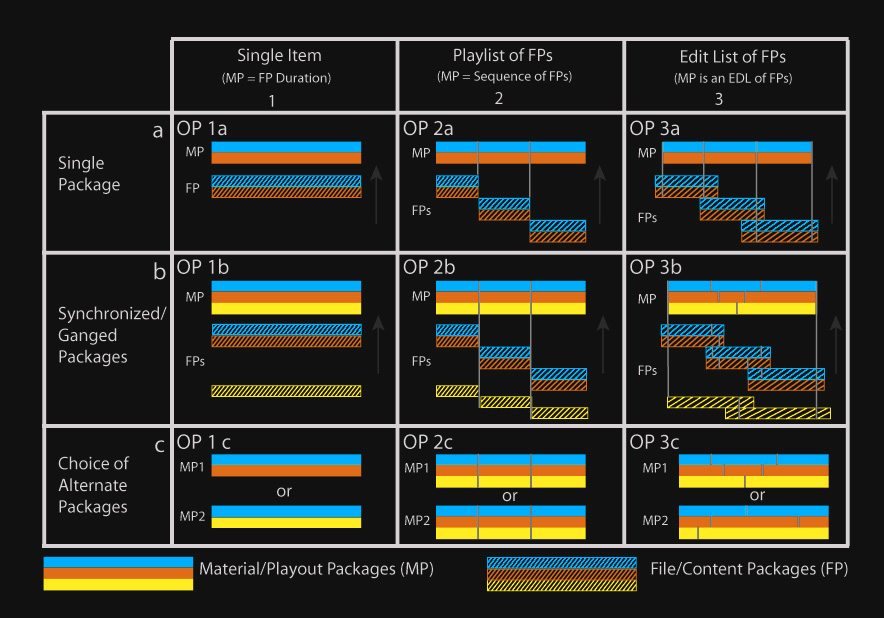
    Table of MXF composition patterns


    The AMWA (Advanced Media Workflow Association) was created to lead the development and promotion of standards and technologies that enable more efficient workflows for networked media. Its current projects advance the use of AAF, BXF, MXF and XML formats in file-based data workflows. This association works closely with SMPTE and other standards bodies. One of its projects refers to MXF files and defines a set of rules that constrain the MXF specification in order to adapt the format to different applications and workflows.

    AMWA specifications can be summarized as follows:

  • AS-02 - MXF with mastering versions. This was developed to support storage and management of program components in MXF, allowing versions, multiple languages and deliveries to different distribution media. It is a file package containing all the video, audio and metadata elements required to generate several versions of a product. Who should use it? Post-production environments, broadcasters and content distributors.

  • AS-03 - Program delivery. This MXF specification is optimized for program distribution and direct playout from a video server. It is a single file containing audio, video and metadata for one program. Who should use it? Broadcast networks.

  • AS-10 - MXF for production. The AS-10 application specification is intended to establish a common MXF file format for the full workflow of a production, including camera recording, server ingest, editing, playback, digital distribution and archiving. One example is the use of MPEG Long-GOP. The project includes development of an application to validate files as an aid for quality control processes. Who should use it? Production and post-production, broadcasters and content distributors.

  • AS-11 - MXF for redistribution. This is an MXF file format for delivering finished products from program creators to broadcast stations. AS-11 includes AS-03 functionality and extends it to include AVC-Intra 100, plus support for the D-10 standard-definition video standard with AES3 audio. AS-11 defines a minimum core metadata set and a metadata scheme with program segmentation. Who should use it? Broadcasters and content distributors.

  • AS-12 - Commercial delivery. AS-12 is a subset of MXF files for delivery of finished commercials to television stations or broadcast networks. The specification provides a slate and other metadata to associate with the sound and video essence. AS-12 establishes that explicit content identification is computer-assisted and that the system controls the playlist. Who should use it? Production and post-production, commercial distribution, broadcasters and cable networks.

  • The main characteristics of these MXF files are shown in the following table. AS-02 does not appear because its development process was not yet definitively closed.
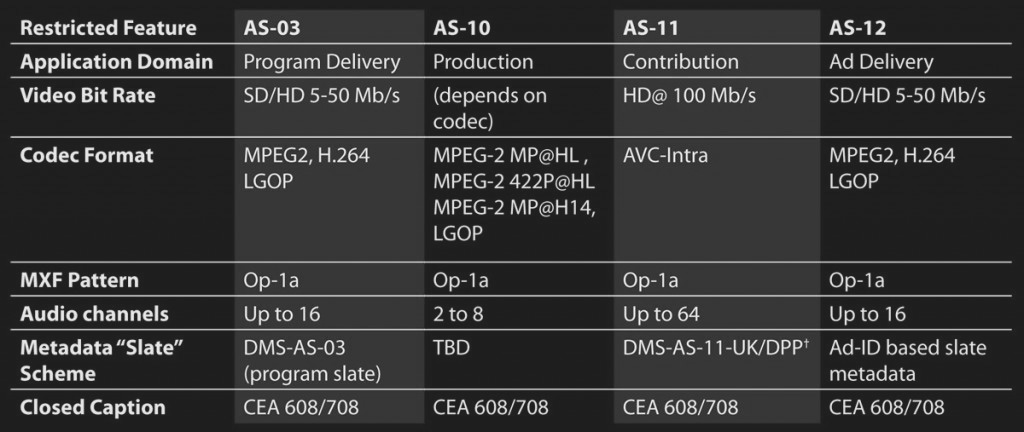
    Table of AS specifications for MXF files


    Speaking of these formats, AVID has supported them since Media Composer version 7. A new AMA (Avid Media Access) component called Avid Media Authoring allows users to deliver and archive multiple output formats, including AS-02 and AS-11.

    These formats are commonly used to deliver our work to broadcast and content distribution centers. SMPTE has also approved IMF (Interoperable Master Format) as a standard, with a structure very similar to DCP (Digital Cinema Package) but designed for the broadcast world, and used by NETFLIX for the deliveries it receives.